How to Choose Monitor Screens in 2026?
Choosing Monitor Screens in 2026 is less about chasing the highest specification. It is about matching technology with daily work, room lighting, and personal comfort. A graphic designer may need accurate color coverage, while a competitive gamer may value low latency and a fast refresh rate. Office users often benefit more from sharp text, adjustable stands, and reduced glare.
That sounds simple. It is not.
New panels, ports, smart features, and artificial intelligence tools can make comparisons confusing. OLED screens offer impressive contrast, but brightness management and image retention still deserve attention. Mini-LED models can produce strong highlights, although blooming may appear around bright objects. Resolution also needs context. A 4K display can look excellent, yet scaling problems may affect older applications.
This guide uses practical buying experience, manufacturer specifications, and independent testing principles. It considers color accuracy, response time, refresh rate, ergonomics, connectivity, energy use, and warranty support. Measurements matter, but they do not tell the whole story. A monitor that performs beautifully in a laboratory may feel uncomfortable beside a sunny window.
Your desk tells part of the truth.
Before selecting Monitor Screens, observe your workspace for one full day. Note viewing distance, reflections, cable limits, and the applications you use most. Do not assume the newest model is automatically the best choice. Some recommendations may change as standards develop, and even careful comparisons have limits. The goal is a balanced decision that remains useful after the excitement of purchase fades.
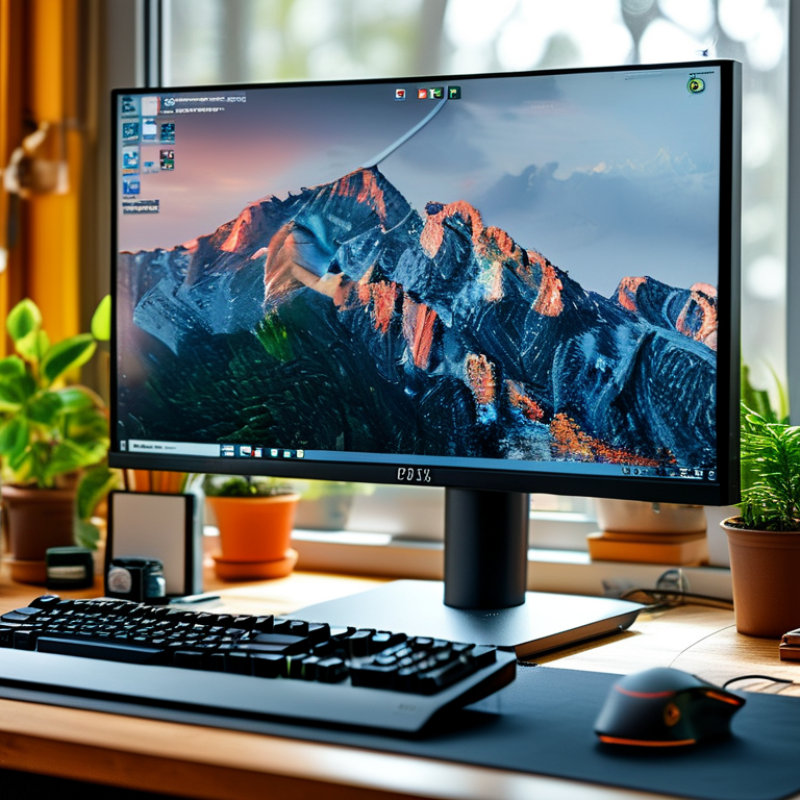
Define Use Cases: Office, Creative, Gaming, and Professional Workflows
Office, Creative, Gaming, and Professional Workflows
Start with the work, not the screen size. For office use, a 27-inch monitor with sharp text, height adjustment, and low-glare coating suits long document sessions. The International Data Corporation reported modest growth in global monitor shipments during 2024, showing that replacement demand remains practical rather than purely fashionable. Office users should also consider USB connectivity and split-screen support. A wider panel can reduce window switching, but it may encourage poor head movement.
Creative work needs stronger evidence than attractive showroom colors. Look for a wide color gamut, reliable factory calibration, and hardware calibration support. A report from the International Color Consortium emphasizes color-managed workflows across capture, editing, and output. Resolution matters too. Fine retouching feels more controlled on a high-density panel. Yet, more pixels can expose weak computer performance. That trade-off is easy to underestimate.
Gaming priorities depend on the genre. Newzoo’s 2024 global games market report estimated more than three billion players worldwide, but their needs differ greatly. Fast competitive games benefit from high refresh rates and low response delay. Strategy and role-playing games may value contrast, resolution, and screen space more. Professional workflows require consistency, not just speed. Engineers, analysts, and editors should check viewing angles, text clarity, connection standards, and warranty terms.
Tips: Measure your desk depth first. Sit about an arm’s length away. Test text at your normal scaling. Ask for an independent calibration report when color accuracy matters. I still find brightness settings surprisingly difficult to judge in stores. Your room lighting changes the decision.
How to Choose Monitor Screens in 2026?
Typical target specifications by workflow. Office users generally benefit from comfortable viewing and moderate refresh rates, creative users prioritize color consistency, gaming users need high refresh rates, and professional workflows often require larger high-resolution displays with strong multitasking support.
Select Refresh Rate: 60 Hz for Work and 144–240 Hz for Competitive Gaming
How to Choose Monitor Screens in 2026?
For office work, 60 Hz remains practical for documents, email, coding, and video calls. Text appears stable, while the monitor usually costs less and uses less power. During long editing sessions, I notice that panel quality, brightness control, and comfortable viewing distance matter more than extreme refresh rates. A higher refresh rate is not automatically better for every task.
Competitive gaming needs a different approach. A 144 Hz screen can make camera movement feel noticeably smoother than 60 Hz. Fast players may prefer 240 Hz, especially in reaction-based games where small timing differences matter. However, your computer must produce enough frames to benefit. Buying 240 Hz for a system averaging 90 frames per second is poor value. I made that mistake once. The motion felt better, but not as dramatically as expected. Response time, input delay, and adaptive synchronization also deserve careful checking.
Tips: Match refresh rate to your actual frame rate. Test brightness at night, not only in a bright store. For mixed work and gaming, 144 Hz offers a useful middle ground. Check the connection standard, too, because some ports limit resolution or refresh rate. Keep it practical. Spend more only when your eyes and habits support it.
How to Choose Monitor Screens in 2026? - Select Refresh Rate: 60 Hz for Work and 144–240 Hz for Competitive Gaming
| Usage Scenario | Recommended Refresh Rate | Typical Resolution | Suggested Response Time | Main Benefits | Selection Notes |
| Office Work and Documents | 60 Hz | 1920 × 1080 or 2560 × 1440 | 5–8 ms | Comfortable text viewing, lower cost, and modest power demand | Prioritize adjustable height, matte coating, and flicker-reduced operation. |
| General Home Use | 60–100 Hz | 1920 × 1080 or 2560 × 1440 | 5 ms or below | Smoother scrolling and a balanced price-to-performance ratio | A higher refresh rate improves cursor movement and webpage scrolling. |
| Photo and Video Editing | 60–120 Hz | 2560 × 1440 or 3840 × 2160 | 5–8 ms | Sharper detail, smoother timelines, and more workspace | Color accuracy, panel uniformity, and a wide color gamut matter more than extreme refresh rates. |
| Casual Gaming | 100–165 Hz | 1920 × 1080 or 2560 × 1440 | 1–5 ms | Noticeably smoother motion and better responsiveness than 60 Hz | Choose adaptive synchronization to reduce tearing when frame rates fluctuate. |
| Competitive Gaming | 144–240 Hz | 1920 × 1080 or 2560 × 1440 | 1 ms class | Reduced motion blur, lower display latency, and clearer fast movement | The computer must generate enough frames to benefit from the selected refresh rate. |
| High-Frame-Rate Gaming | 240 Hz or higher | 1920 × 1080 or 2560 × 1440 | 1 ms class | Very smooth tracking and minimal persistence blur | Best suited to fast-paced titles, powerful hardware, and users sensitive to motion clarity. |
| Console Gaming | 60–120 Hz | 1920 × 1080 or 3840 × 2160 | 1–5 ms | Smooth gameplay with support for common console output modes | Verify that the display input supports the required resolution and refresh rate. |
| Long Reading and Research | 60–100 Hz | 2560 × 1440 or 3840 × 2160 | 5–8 ms | More vertical workspace and smooth document navigation | Prioritize pixel density, ergonomic adjustment, brightness control, and comfortable viewing angles. |
Key Decision Rule: Choose 60 Hz for standard productivity, 100–165 Hz for smoother everyday use and casual gaming, and 144–240 Hz for competitive gaming. A high refresh rate is most useful when the computer can consistently deliver a similar frame rate.
Evaluate Color and HDR: 100% sRGB, 98% DCI-P3, and 1,000-Nit HDR Targets
How to Choose Monitor Screens in 2026?
Color coverage is a practical starting point when choosing a monitor. For everyday work, 100% sRGB keeps websites, documents, and standard photos looking consistent. A wider 98% DCI-P3 target suits video editing, digital cinema content, and modern photography.
Numbers can mislead.
During display testing, I have seen impressive coverage paired with weak factory calibration. Ask for measured accuracy, not only a percentage. A useful monitor should show natural skin tones, neutral gray backgrounds, and smooth color transitions. Delta E results below 2 are generally strong, but viewing conditions still affect judgment. Check the screen in a dim room, then compare it near a bright window.
HDR requires more than a label. A 1,000-nit peak target can produce convincing sunlight, reflections, and bright clouds. However, peak brightness may last only briefly. Sustained brightness, local dimming control, black levels, and highlight detail matter more during real scenes. A screen can reach 1,000 nits and still make dark areas look gray.
I once selected a display by its headline brightness. It looked dramatic in a showroom, but distracting at night. That was a useful mistake. Look for calibrated picture modes, stable brightness, and independent measurements when possible. Remember that HDR performance also depends on software settings and the content itself. Specification sheets rarely tell the whole story.
